
sName2Date
Reads the date from the file name – more than a dozen notations, month names in the app's language and in English
Takes the date from the file name and writes it into photos and videos as the capture date – so your photo library and File Explorer sort them correctly. Whole folders at once, everything undoable with Ctrl+Z.
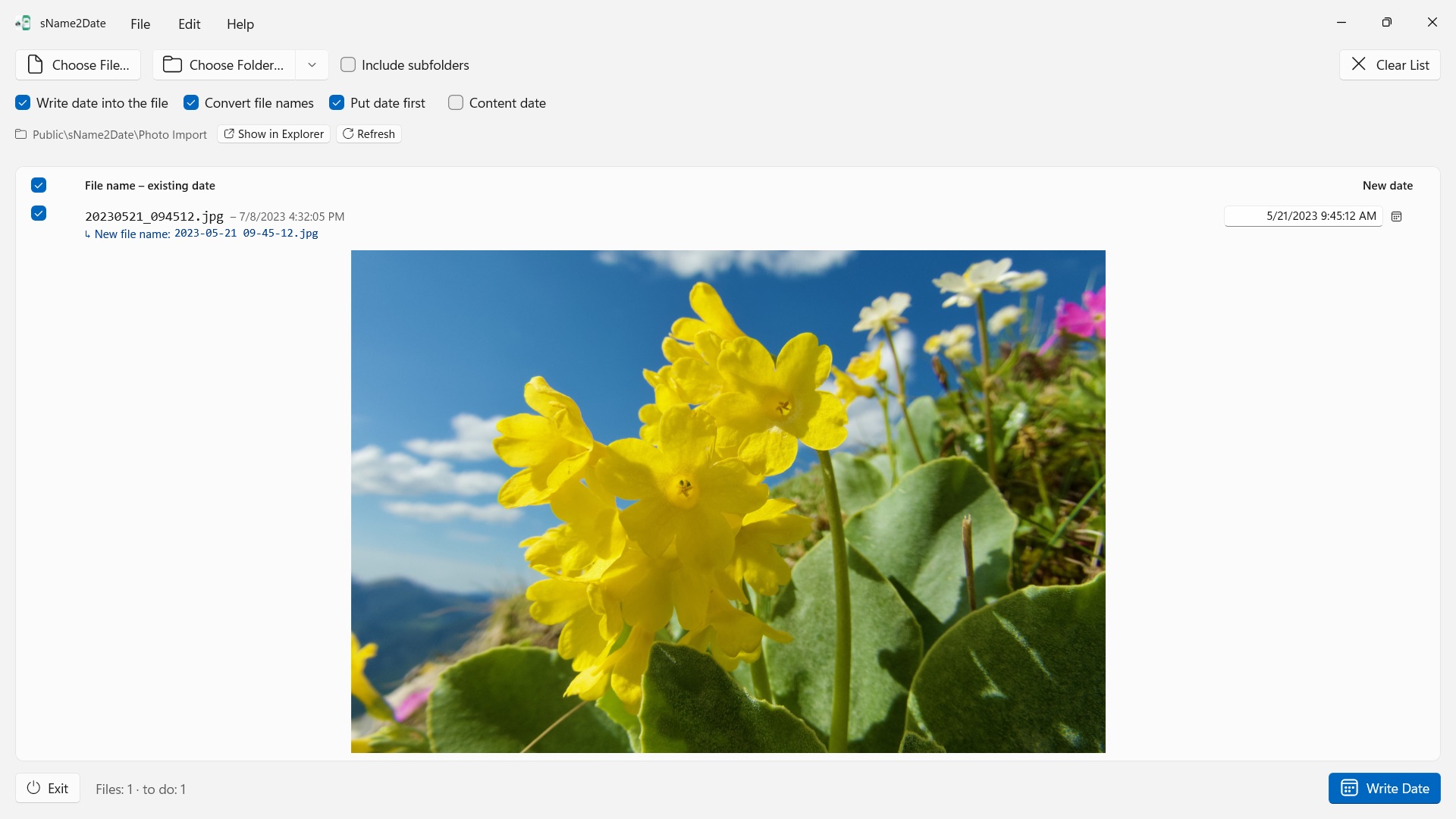
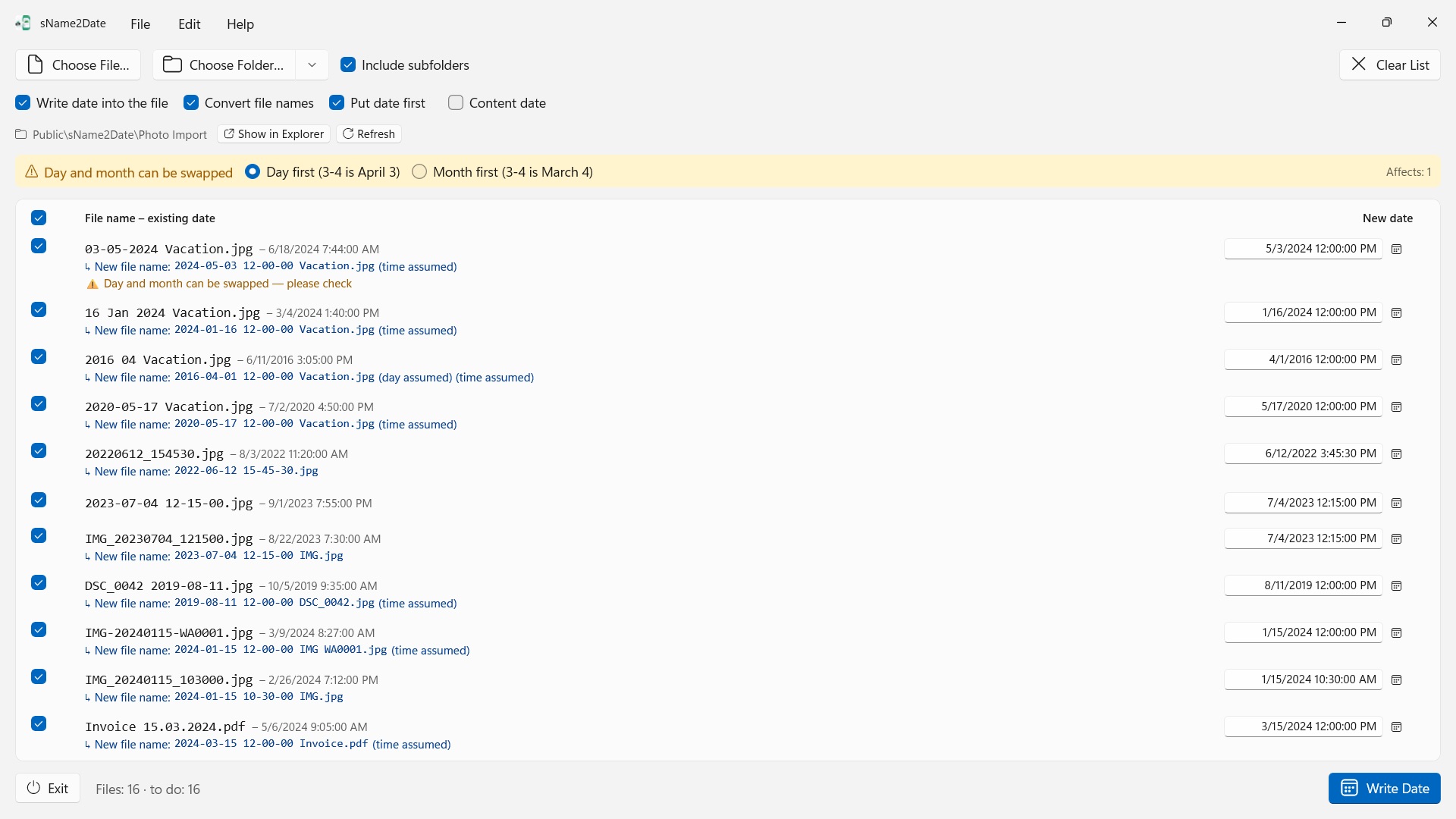
Plenty of photos and videos carry their date in the file name, and so do audio recordings and documents such as PDFs – just not where software looks for it. Pictures saved from a chat, pulled off a scanner or rescued from an old archive arrive as IMG_20240115_103000.jpg, Vacation 15.01.2024.jpg or Invoice 23112024.pdf, and every photo library – and File Explorer – files them under today's date.
sName2Date reads the date from the file name and writes it into the file as the capture date. If the file has none yet, it gets one. For PDFs and other files without a capture date, the app sets the file's creation and modification date.
25 languages: English, German, Czech, Croatian, Dutch, Finnish, French, Hungarian, Italian, Japanese, Korean, Norwegian (Bokmål), Persian, Polish, Portuguese (Brazil and Portugal), Romanian, Russian, Spanish, Swedish, Thai, Turkish, Ukrainian, Chinese (Simplified and Traditional). The app follows the Windows display language.
FORMATS IT RECOGNIZES
Dates and times in the common notations, among them:
- 2024-01-15 10-30-00
- IMG_20240115_103000
- IMG-20240115-WA0001
- 2024-01-15 · 2024 01 15 · 2024_01_15
- 15.01.2024 · 15-01-2024 · 15.01.24 · 15012024
- 15 Jan 2024 · 15 March 2024 · January 15 2024
- 2016 04 · 04-2016 – year and month only
Spelled-out month names are read in the app's language and in English, in both the long and the abbreviated form.
If the name holds only a date, a time is assumed – you decide which one. If the day is missing too, the first of the month applies, and the row says so. If several dates appear in one name, the first one wins. And where day and month could be swapped, you decide – the default comes from the Windows regional format, and the files in question are marked instead of being guessed at silently.
If there is no date in the name at all, you type it in yourself on the right of the row. That reaches back to 1826, the year of the oldest surviving photograph – so a scanned nineteenth-century picture can be dated just like yesterday's.
WHAT GETS CHANGED
sName2Date writes EXIF DateTimeOriginal and DateTimeDigitized as well as TIFF DateTime, and for videos and audio recordings the creation date inside the container. On request, the creation and modification date of the file itself as well.
The image data stays untouched: a JPEG is not recompressed, a video is not re-encoded. For videos and audio recordings the app usually changes just a few bytes inside the container instead of rewriting it – even a large movie is done in an instant. After every write the app reads the date back; the color of the row tells you where it ended up.
The capture date goes into the file itself for JPEG, TIFF and HEIC (with Microsoft's HEIF Image Extensions), for the video formats MP4, MOV and M4V and for the audio formats M4A and M4B. PNG, GIF, WebP, AVI and RAW photos get an XMP sidecar file next to them, which many photo applications read as well – the row shows a blue check mark.
EVEN FILES THAT CANNOT HOLD A CAPTURE DATE
A PDF, a text file, a spreadsheet has no field for a capture date at all – and still comes into the list. sName2Date sets the file's creation and modification date there, the only place the date can end up; the row shows it with an orange check mark instead of a green one. So here the extension does not matter – PDFs, text, spreadsheets, archives, anything.
If the file is not to be touched at all, you clear the checkbox "Write date into the file" at the top of the window. sName2Date then only brings the name into ISO notation: Invoice 15.03.2024.pdf becomes 2024-03-15 12-00-00 Invoice.pdf, and in File Explorer the folder now sorts by date. If you prefer, the date stays where it stood in the name instead of moving to the front.
EVERYTHING CAN BE TAKEN BACK
A run is undone completely with Ctrl+Z – capture date, file timestamps and the changed file name. Ctrl+Y restores it.
WHOLE FOLDERS
sName2Date takes entire directory trees in one go and can skip files that already have a capture date. Your recent folders are at hand, and at the next start the last folder is loaded again.
ON YOUR PC, AND ONLY THERE
No accounts, no cloud, no analytics, no ads. The app only accesses the files and folders you give it. Full help in every language.
sName2Date Lite · Free — The edition for one file per run: write the date from the file name into a photo, a movie, or an audio recording as the capture date, set it by hand, put the name into ISO notation, and undo everything with ⌘Z — the same capabilities as sName2Date, just without entire folders.
- Requires Windows 11 or later
- 24 languages
- Support: SwiftAppsBavaria@gmx.net
- Privacy Policy for sName2Date